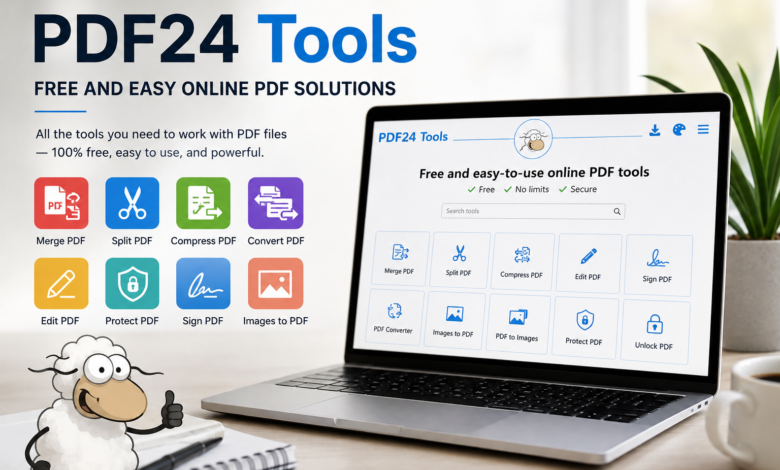
That is where PDF24 Tools can make things much easier. PDF24 provides a large collection of free online PDF utilities designed to handle common document tasks directly from a web browser. The platform includes tools for merging, splitting, compressing, converting, editing, signing, protecting, organizing, and optimizing PDF documents.
One of the biggest attractions of PDF24 Tools is its straightforward approach. Instead of installing a separate application for every PDF task, users can open the required tool, upload a document, perform the desired operation, and download the result. This makes PDF24 particularly useful when you need a quick solution without learning complicated software.
PDF24 also offers an offline alternative called PDF24 Creator for Windows. The desktop software provides many PDF functions locally, meaning files can remain on the user’s computer instead of being uploaded to an online processing server.
What Are PDF24 Tools?
PDF24 Tools is an online collection of PDF utilities developed to solve different document-related problems. The service is available through a web browser, so users generally do not need to install additional software before working with their files. According to PDF24, the online tools are designed to work across current operating systems and browsers, including computers and smartphones.
The platform is much broader than a simple PDF converter. Users can merge several PDF files into one, split large documents into smaller files, compress PDFs, rotate pages, remove pages, extract selected pages, add watermarks, insert page numbers, and perform many other operations. The official tools directory contains a large collection of individual utilities.
This approach is useful because PDF problems are rarely limited to one specific task. Someone preparing a business report might need to combine several documents, compress the final file, add page numbers, and then protect it. A student might convert lecture notes into PDFs, extract selected pages, or create a searchable PDF from scanned material.
Rather than forcing users into one complicated interface, PDF24 separates many functions into individual tools. This can make the experience easier for people who know exactly what they need to accomplish.
Why PDF24 Tools Is Popular
A major reason people search for PDF24 Tools is its free-to-use model. PDF24 states that its online tools are available free of charge, with advertising supporting the web service. The company also says there are no artificial usage limits on the online tools.
Another advantage is accessibility. Since the online tools work through a browser, users do not necessarily need to install a desktop PDF application. This can be particularly convenient when working from a shared computer, a school computer, an office device, or a smartphone.
The platform also focuses heavily on individual PDF tasks. Instead of searching for separate websites for PDF compression, PDF conversion, PDF merging, and PDF splitting, users can find these functions within the same PDF24 ecosystem.
There is also a practical benefit for occasional users. If you only need to manipulate a PDF once in a while, purchasing expensive professional PDF software may not make much sense. A free browser-based tool can be a more convenient option for routine document work.
PDF24 Merge PDF Tool
One of the most useful PDF24 features is the Merge PDF tool. It allows users to combine multiple PDF documents into a single file. This can save time when documents are scattered across several files and need to be submitted or shared together.
For example, imagine you have a cover letter, résumé, certificates, and supporting documents saved as separate PDFs. Instead of sending each file individually, you can combine them into one organized document. This is especially helpful for job applications, school assignments, business proposals, and administrative paperwork.
PDF merging is also useful for businesses. Reports may arrive from different departments or employees and need to be consolidated before distribution. Combining them into one PDF can make the final package easier to review and archive.
The process is designed to be simple. You select the PDF files, arrange them in the desired order, and create a combined document. PDF24 includes rearranging and organizing functionality among its available PDF tools.
PDF24 Compress PDF Tool
Large PDF files can become inconvenient when you need to email them, upload them to a website, or store many documents. The PDF24 compression tool is designed to reduce file size while keeping the document usable.
Compression is particularly valuable for PDFs containing high-resolution images. A scanned document or image-heavy report can sometimes become much larger than expected. Reducing the size can make sharing faster and help meet upload restrictions.
The important point is that compression involves balancing file size and quality. Aggressive compression can reduce image quality, while lighter compression may preserve more detail but produce a larger file. Choosing the right level depends on how the PDF will be used.
For websites, online applications, email attachments, and general document sharing, a reasonably compressed PDF can often be much easier to handle. PDF24 lists PDF compression as one of its core online tools.
PDF24 PDF Converter
PDF conversion is another major area where PDF24 Tools can be useful. The platform provides conversion options between PDF and several common document formats. Its official tools directory includes options such as Word to PDF, PowerPoint to PDF, Excel to PDF, images to PDF, PDF to Word, PDF to PowerPoint, PDF to Excel, PDF to images, and other conversions.
Converting a Word document to PDF is particularly common because PDF files preserve a more consistent presentation across devices. A document that looks different in different versions of word-processing software can be easier to distribute as a PDF.
The reverse process can also be useful. If you receive a PDF containing editable information, converting it into Word or another supported format may give you more flexibility for editing. However, conversion quality can depend on how the original PDF was created.
Scanned PDFs present a different challenge because their content may actually be images rather than editable text. That is where OCR can become useful. PDF24 includes an OCR tool designed to recognize text from scanned documents and create searchable PDFs.
Editing and Organizing PDFs With PDF24
PDF editing does not always mean completely rewriting the original document. Often, users simply need to make practical adjustments such as adding text, annotations, shapes, or other elements.
PDF24 provides editing and annotation-related tools for these situations. Its online annotation functionality has supported features such as adding text, drawing freehand, inserting shapes, and adding images to PDF pages.
Organization is another important part of PDF management. Large documents can contain unnecessary pages, incorrectly ordered sections, or duplicate information. PDF24 provides tools for deleting pages, extracting pages, rearranging pages, rotating pages, and splitting documents.
These features can be especially useful when preparing a final document for submission. Instead of rebuilding an entire PDF from scratch, you can often make smaller structural changes and create a cleaner final version.
PDF24 OCR for Scanned Documents
OCR, or Optical Character Recognition, is an important technology for people who work with scanned documents. A normal scanned PDF may look like a document on screen, but the words may actually be stored as an image.
That creates a problem when you want to search for a particular word or copy text from the page. OCR attempts to recognize the characters in the scanned image and turn them into machine-readable text.
PDF24 includes a PDF OCR tool for this purpose. The company’s tool information explains that OCR can recognize text in scanned documents or photographs and create a searchable PDF.
OCR can be helpful for archived paperwork, scanned books, receipts, forms, invoices, and old documents. However, users should still review OCR results carefully, especially when the original scan is blurry, distorted, handwritten, or uses unusual fonts.
PDF24 Sign and Protect PDF Files
Digital documents often contain information that should not be casually altered or shared. PDF24 therefore includes tools related to PDF signing and protection.
A PDF signature can be useful when completing forms, approving documents, or preparing digital paperwork. PDF24 lists PDF signing among its available tools.
The platform also provides options for protecting PDF documents. Password protection can add an extra security layer when sharing sensitive files, although users should understand that password protection is only one part of document security.
PDF24 also offers tools for removing passwords or unlocking PDFs when the user has the necessary authorization to do so. These features can be useful for legitimate document management, such as working with files that the owner has provided for editing.
For confidential information, users should always consider the sensitivity of the document before choosing an online processing service. In situations where files must stay on a local computer, PDF24 Creator can provide an offline alternative.
Is PDF24 Tools Safe to Use?
Security is naturally an important question whenever a website requires users to upload documents. PDF24 says that transfers to its servers are encrypted and that uploaded files and generated results are automatically deleted after a limited period. Its FAQ states that files are automatically removed within one hour, while its privacy policy also describes processing servers located within the European Union.
These measures are useful, but users should still think carefully about the type of information contained in their documents. A PDF containing public information is very different from a document containing highly confidential business records, financial information, or personal identification data.
For users who want local processing, PDF24 Creator is an important alternative. The desktop version processes files on the user’s PC, so documents do not need to be uploaded to the online PDF24 service for those operations.
This distinction makes PDF24 more flexible. Casual documents can be handled online for convenience, while sensitive files can potentially be handled locally using the desktop application.
PDF24 Online Tools vs PDF24 Creator
The online PDF24 Tools and PDF24 Creator serve similar purposes but are designed for different situations. The online tools are convenient because they work directly in a browser and do not require a traditional software installation.
PDF24 Creator, on the other hand, is desktop software for Windows. PDF24 describes it as an offline version of its PDF tools, with files remaining on the user’s computer during local processing.
The offline approach can be attractive to businesses, professionals, and anyone who regularly handles confidential documents. It can also be useful when an internet connection is unavailable.
There is one important platform difference to remember. PDF24’s official manual states that PDF24 Creator is designed for Windows, while Mac users can use the online PDF24 Tools instead.
How to Use PDF24 Tools
Using PDF24 is generally straightforward. First, open the PDF24 Tools website and choose the specific function you need. The official platform provides separate tools for common tasks, making it easier to locate the right solution.
Next, upload or select the file you want to process. Depending on the tool, you may be able to add multiple documents, change their order, select pages, or adjust available settings before processing.
After configuring the task, start the operation and wait for PDF24 to process the document. Processing time can depend on the file size, document complexity, and your internet connection.
Finally, review the resulting PDF before using or sharing it. This is an important habit regardless of which PDF software you use. PDF24’s terms specifically state that users are responsible for checking the correctness and completeness of documents created through its services.
Who Can Benefit From PDF24 Tools?
Students can use PDF24 for assignments, research papers, scanned notes, presentations, and document submissions. Combining several files into one PDF can make coursework easier to organize and submit.
Freelancers and remote workers can also benefit from the platform. Proposals, invoices, contracts, portfolios, and reports frequently need to be converted, compressed, signed, or combined before being sent to clients.
Small businesses have similar needs. A company might use PDF24 to prepare invoices, create application documents, organize reports, convert office files, and reduce document sizes for email.
Even casual users can find value in PDF24. Sometimes the need is very simple: remove a page, rotate a scanned page, convert an image into PDF, or make a file smaller. Having these functions available from one platform can save considerable time.
Advantages and Limitations of PDF24 Tools
PDF24 has several strong advantages. Its broad collection of tools means users can handle many different PDF tasks from one ecosystem. The online tools are free, browser-based, and designed for straightforward use.
Another advantage is the combination of online and offline options. Users who prioritize convenience can use the browser-based tools, while Windows users who prefer local processing can use PDF24 Creator.
However, no PDF platform is perfect for every situation. Online tools require an internet connection and involve uploading documents to a processing service. For extremely sensitive documents, local processing may be preferable.
There can also be differences in results depending on the original document. PDF conversion, OCR, and complex editing can sometimes produce imperfect results. That is why reviewing the final document is always important.
Is PDF24 Tools Really Free?
Yes. PDF24 states that its online PDF tools are free of charge and that its PDF24 Creator desktop software is also free. The company explains that advertising on its web pages helps support the online service.
This free model is one of the platform’s strongest selling points. Users can access a large selection of PDF functions without committing to a monthly subscription for basic PDF tasks.
The company has also maintained its free PDF software approach for many years. PDF24 says its project has been continuously developed since 2006, which gives the platform considerable history compared with many newer online document services.
For someone who only needs occasional PDF editing, conversion, compression, or organization, that can make PDF24 an attractive option.
Final Thoughts on PDF24 Tools
PDF24 Tools is a versatile PDF platform that brings many everyday document functions into one convenient place. From merging and splitting PDFs to compression, conversion, OCR, signing, editing, and document organization, it covers a wide range of common PDF requirements.
Its biggest strength is simplicity. You do not need to become a PDF expert just to perform a basic document task. Most tools are built around a straightforward workflow that lets users select a file, choose an operation, process it, and obtain the result.
The combination of browser-based tools and PDF24 Creator also gives users flexibility. People who prioritize speed can work online, while Windows users who need offline processing can use the desktop version.
Overall, PDF24 Tools is a practical choice for students, professionals, freelancers, businesses, and everyday users who need reliable PDF utilities without paying for expensive software. As with any online document service, users should consider privacy and document sensitivity before uploading files, but for ordinary PDF tasks, PDF24 offers an impressive range of useful features in one free platform.